
Read the lights before you touch anything. This page lists what each color and blink pattern means on every Motive device.
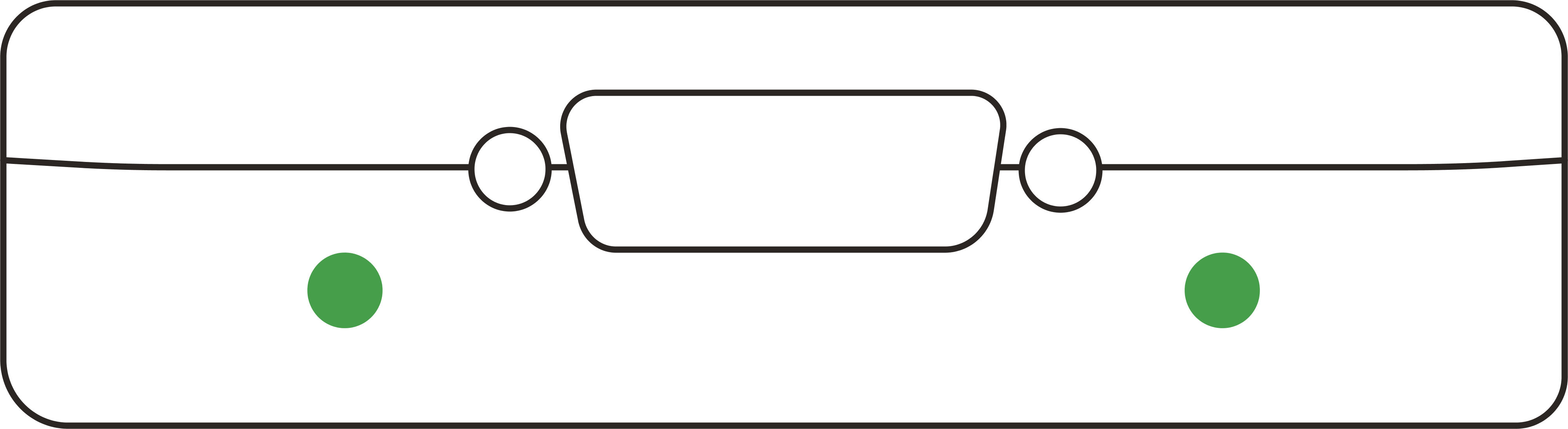

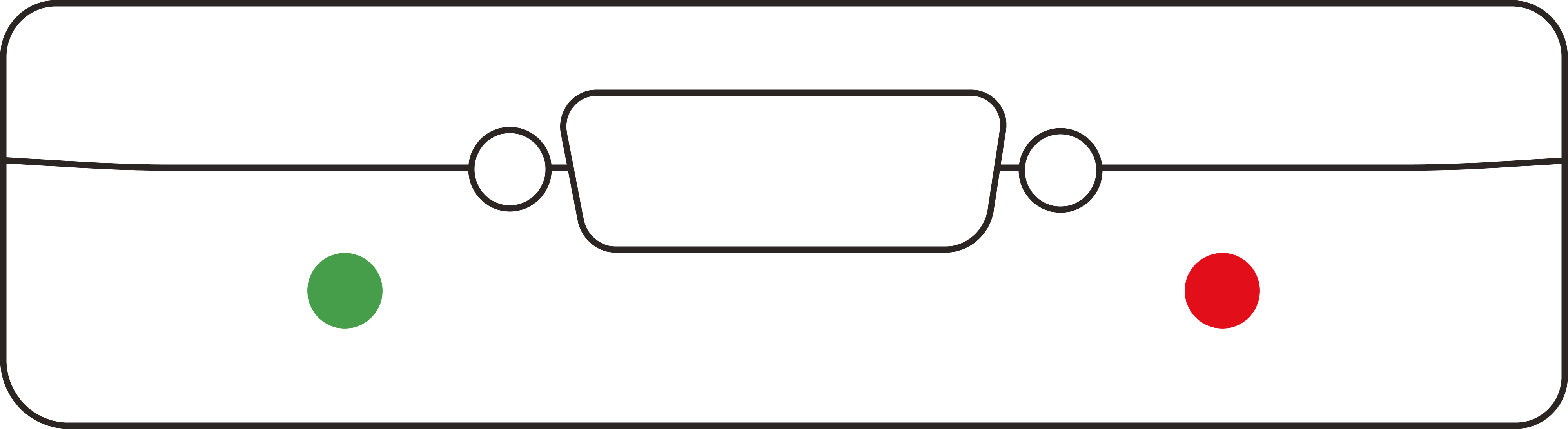
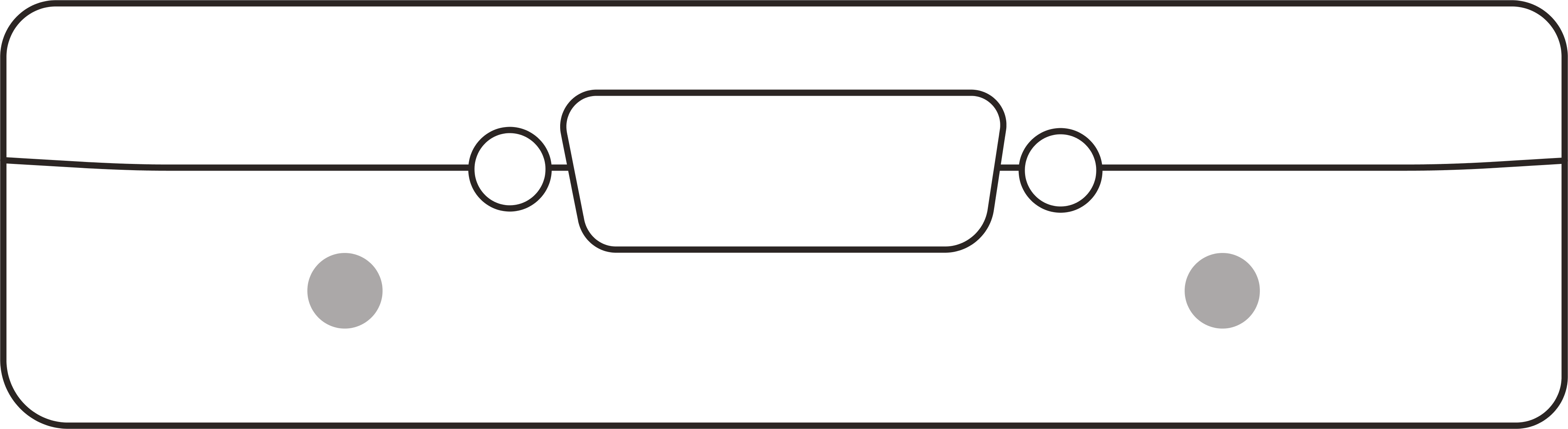

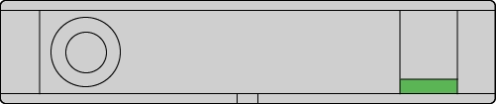
The left light is the GPS light. The right light is the Driver App and engine data light. On the 3.6 and newer gateway the lights are full color. The 3.55 and older gateway uses the same logic with fewer colors.
| Left light | Meaning | What to do |
|---|---|---|
| Solid green | Valid GPS signal | Nothing, this is normal |
| Solid red | No reliable GPS fix | Move the unit away from metal plates and heater vents, logo up with a clear view of the sky |
| Right light | Meaning | What to do |
|---|---|---|
| Solid green | Driver App connected | Nothing, this is normal |
| Solid red | Engine off or no engine speed, and no app | Normal with the engine off. With the engine running, check the cable |
| Slow blinking red | Engine on, vehicle stopped, app not connected | Connect the Driver App |
| Fast blinking red or orange | Vehicle moving, app not connected | Connect the app now, because drive time can land on the wrong driver |


| Both lights | Meaning |
|---|---|
| Blinking red | First power on. Wait two to three minutes, and check the single-light tables if it is still red after five |
| Solid white then blinking white | Powering up, about fifteen seconds |
| Yellow and white blinking | Firmware update, do not unplug |
| Orange and green blinking | Firmware update on the 3.55 and older unit, do not unplug |
| Both blinking orange for over a minute | Waiting or a power problem, call Motive Support |
| Both off | No power. Check the cable, ignition, fuse and battery |
A pinhole reset on the 3.6 and newer unit shows blinking green and blue for about 30 seconds, then yellow for four or five seconds, then white. When both lights blink green or red again, it has finished. A press shorter than one second does nothing.

Motive's help center describes these light states for the Smart Dashcam. If the light is off, the dashcam is not powering up, so check the cable and the connection to the Vehicle Gateway, then see the troubleshooting page.
| Light | What it means |
|---|---|
| Solid red | The camera has power and is recording. |
| Flashing red | The camera is updating its firmware. The light blinks on, off, on, then cycles between flashing and off until the update finishes, and returns to solid red. |
| Solid white | The camera has a malfunction. |
| Flashing white | The camera is overheating. |
| Blinking blue | The camera is enabled for live streaming and needs no action. If the light does not turn blue after installation, recheck the installation. |
| Light bar | Meaning |
|---|---|
| Solid white in the middle | Powered, not booted yet |
| White moving left to right | Booting |
| Blinking white | Firmware update |
| One white blink | Reset button held 10 to 15 seconds |
| Solid blue | Active and recording |
| Blinking blue | Live stream running |
| Pulsing blue | Quick capture button pressed |
| Blinking yellow | No driver linked to the gateway |
| Blinking red | Unsafe driving event detected |
| Blinking purple | A fault such as a disconnect or overheating |
| Solid green | Driver privacy mode, driver camera not recording |

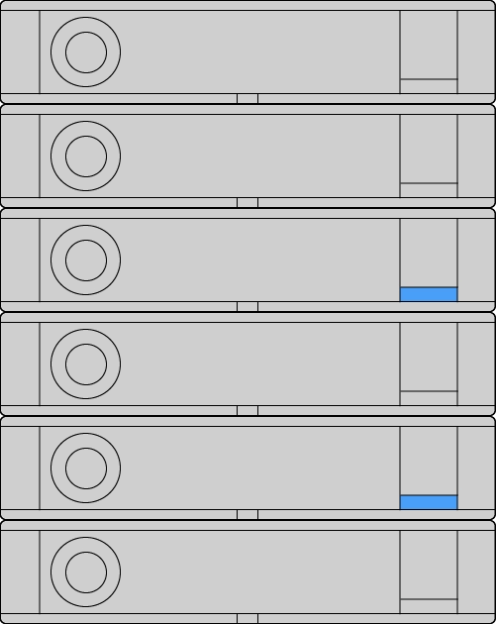
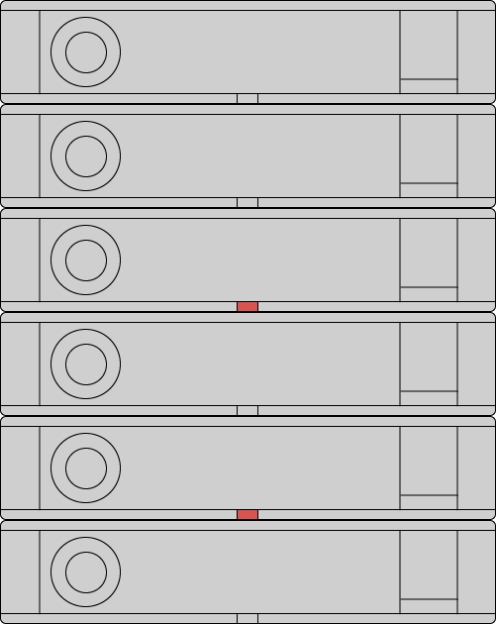
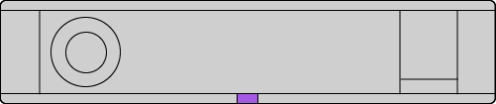
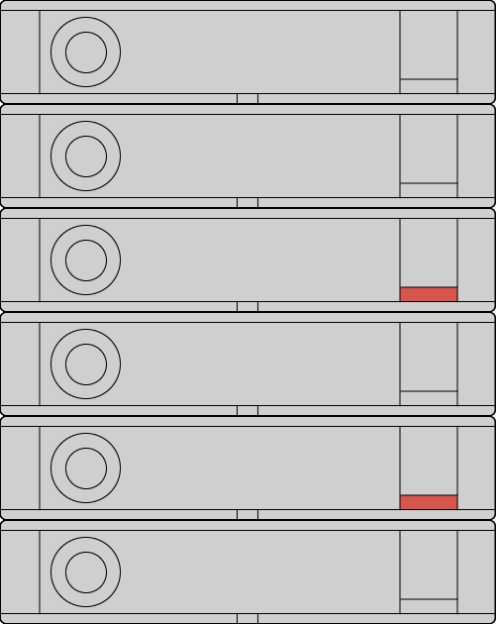
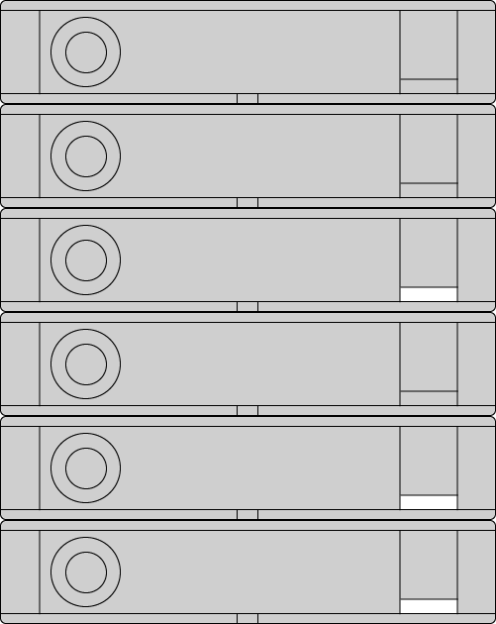
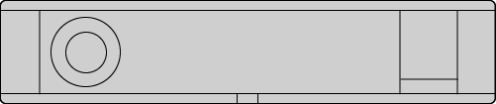
The Plus uses a similar light and adds audio. Hard acceleration, hard braking, hard cornering and stop sign violations give one blinking red light and one audio alert. Speeding, close following, a seatbelt violation and phone use blink red and repeat with periodic audio until the behavior stops. A blocked lens gives a persistent red blink with periodic audio. Solid purple is a hardware issue that stays on until it is fixed. Blinking white is booting or a firmware update, and solid blue is recording. These alerts only work when they are turned on in the fleet dashboard.
| Device | Light or sound | Meaning |
|---|---|---|
| AI Omnicam | Solid white | Recording properly |
| AI Omnicam | Slow flashing white | Starting up |
| AI Omnicam | Fast flashing white | Error state, try the pinhole reset |
| Asset Gateway Mini | Flashing blue | Powered on, or connecting to cellular |
| Asset Gateway Mini | Solid yellow | Weak cellular, data may be late |
| Asset Gateway Mini | Orange | Overheated, let it cool five minutes |
| Asset Gateway Mini | Red | Low battery |
| Beacon | One green flash | Broadcasting has started |
| Beacon | One orange flash | An error occurred |
| Beacon | One red flash | Entering ship mode, broadcasting stopped |
| Environmental Sensor | Blinking blue | Pairing, up to 10 minutes |
| Environmental Sensor | Solid red | Battery low |
| Driver ID Reader | Light and one beep | Card scan worked |
| Driver ID Reader | Beep about once a minute | An unknown or unassigned card was used |
Green means good on the gateway. Red on the left means no GPS, red on the right means the app is not connected. White means the device is busy updating or booting, so leave it alone until it stops.
The lights tell you which problem you have before you touch a cable.
Two Motive articles word a few lights slightly differently, so treat the light as a clue and confirm in the Fleet App.
Sources: Motive help center, read Nov 25, 2026
Tell us how many vehicles you run and what you want to see, and we will match you to the right Motive devices and the install that goes with them.
We Supply It. We Install It. One Call.
